Utillz

How to Delete A WordPress Theme in 2025? Beginner’s Guide

Delete a wordpress theme

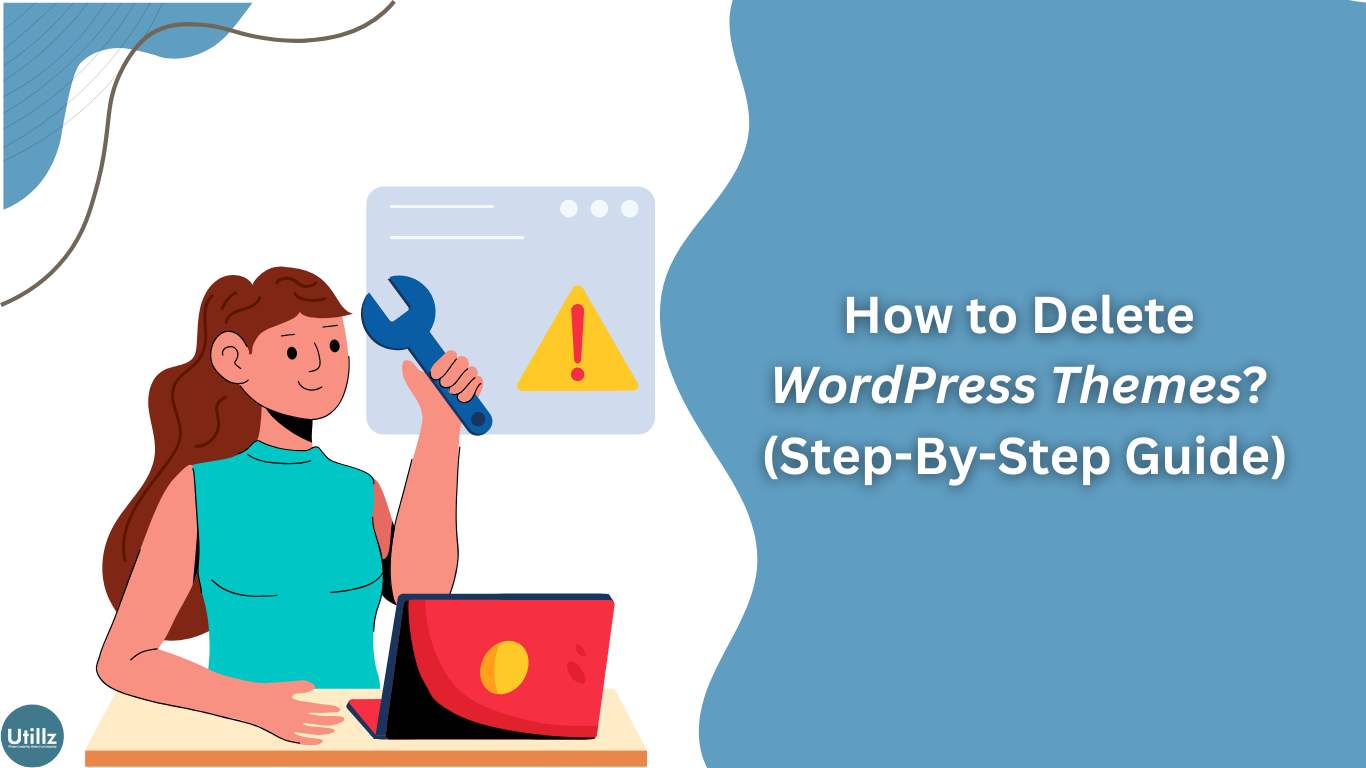
Every blogger understands that WordPress Themes are such a saviour for all those who don’t know how to code. But there are a lot of things that should be kept in mind if you really want your website to perform well. One of those things is knowing how to delete a WordPress Theme. It might not sound very important but it is. In this blog, we are going to show you why it is important to remove a WordPress theme after you have decided to move on with another one.

If you have recently decided to switch your WordPress theme to a new one, then you should remove the older one. The themes that are not in use impact the site’s performance and security. No one would ever want such problems for their site, so continue reading, and we will help you delete a theme from WordPress correctly.

When to Delete A WordPress Theme? 

You should know when to delete a WordPress Theme because an unused theme can impact the security of your site. Well, there are more reasons:

1) Performance: Unused WordPress Themes can occupy space in your server which can increase the number of your website’s files. This can impact your WordPress Performance and you can face problems while using it.

2) Security: As mentioned in the previous point, WordPress theme files take up space. It can also increase the backup sizes which can delay the process of scanning them for the security plugins.

If you got your WordPress Theme from an unpopular developer, then you need to be careful enough. Some developers hide backdoors or malware in those WordPress themes that are not used.

3) Updates: You will be getting unnecessary updates even if you’re not using them.

Uninstalling Vs. Deleting a WordPress theme

There isn’t much difference between the two terms. Both terms mean that you are removing a WordPress theme that you are not going to use anymore and also about deleting all of its files.

Well, if you delete a WordPress Theme from your admin area, it might not help delete all of its files from your server. So, you need to be careful while removing them all.

Before Uninstalling a Theme From WordPress

Before removing a theme from WordPress, we advise you to take a backup if you are hesitating to move on. Most blogger wishes to preserve what they have customised in their WordPress theme and if you do not want those customisations then you do not have to create a backup.

You can download that theme folder as a backup in your computer system. For that, you can visit your WordPress hosting account dashboard and there you will be able to use the FTP or File Manager app. After connecting, download the inactive theme folder to your PC by going to the /wp-content/themes/ folder.

Once you get your desired backup of your old theme, now you can delete it without any hesitation.

How to Remove a Theme from WordPress?

To delete a WordPress theme, we have two basic methods for both beginners and pros.

Method 1: Deleting a WordPress Theme Through the Admin Area

The simplest and the most advised method for removing a WordPress theme is through the admin area. You might or might not be familiar with it.

The first step is to navigate to the Appearance » Themes tab and then select the theme that you wish to remove.

You will see a popup window that will the details of your theme. Here, you will see two options, ”Activate” and ”Delete”. Tap on to the “Delete” button at the bottom of the popup screen.

You will then be prompted to confirm that you wish to remove the theme. Just click “OK” to proceed, and WordPress will remove the theme that you have chosen.

Method 2: Deleting a WordPress Theme through FTP

Although a little more complicated, this technique is useful if you can’t get into the WordPress admin area. To make sure all of the WordPress theme files have been deleted, it’s also a good idea to do this after completing the first procedure.

Just use an FTP client to access your WordPress website, then navigate to the root folder—usually public_html. Next, navigate to the /wp-content/themes/ directory. You must then find the theme folder that you wish to remove. To delete a folder, right-click on its name and choose “Delete.”

What If You Accidentally Remove a WordPress Theme?

There are several methods for recovering a WordPress theme that you may have unintentionally erased.

You can easily restore it if you have a backup. This is made simpler by the fact that a lot of WordPress backup plugins let you rapidly return your website to a previous state. You can restore the theme, though, by downloading and installing a new version of the same theme if you forgot to create a backup.

The drawback of the second strategy is that any theme adjustments you make will be lost. Because of this, we strongly advise making a backup before using any techniques to delete theme.

Facebook
Twitter
LinkedIn

Recent Post

Theme Collections
Utillz

How Vacation Rental Pricing Keeps Holiday Rentals Profitable

Ask most hosts how they price their vacation rental, and you’ll get one number. Ask a profitable one, and you’ll get several. A peak-season rate. A discount for longer stays. A cleaning fee. A deposit. None of these rules do much on their own. That’s the point. Together, they protect your margin across a full year of demand that never sits still.

Read More »
Theme Collections
Utillz

Build a Multi-Vendor eBook Marketplace With WordPress

A basic digital store works fine if you’re the only one selling. But once you want other authors, writers, or educators publishing their own eBooks on your site, you need something built for that: author submissions, individual pricing, download limits, and a way to keep things organized as more sellers join.

Read More »
Theme Collections
Utillz

How to Avoid Double Bookings No Matter Where You Host

Two guests. One property. Same dates. If you’ve ever opened your booking dashboard to that particular nightmare, you already know how fast a good week turns into a bad one. Someone has to be turned away, a refund has to go out, and you’re left hoping the guest you disappointed doesn’t leave a review that follows you around for months.

Read More »
Theme Collections
Utillz

Multi-Vendor Marketplace WordPress: Let Others Sell With Yo

There’s something genuinely appealing about the idea of building your own Etsy, Gumroad, or Creative Market a place where other creators bring their work, list it, sell it, and you earn a little something every time a sale happens. You’re not running a one-person shop anymore. You’re running the storefront everyone else sells from, collecting your share while someone else does the actual creating.

Read More »
Theme Collections
Utillz

Vehicle Rental Marketplace on WordPress Beyond a Listing Page

Someone else is setting your prices right now, and you might not even know it.
Most user-to-user vehicle rental platforms keep 10% to 35% of every trip price, depending on the protection plan a host picks. Run a $90-a-day rental through that math, and anywhere from $9 to $30 disappears before the host ever sees it. Every single time. For as long as the vehicle stays listed there.

Read More »
Theme Collections
Utillz

How to Build a Software Marketplace on WordPress

A software project can start small an idea, a few files, a handful of early users. The real challenge comes once it outgrows that: turning it into a storefront where customers can discover, buy, and download the software in one place.

Read More »

How Vacation Rental Pricing Keeps Holiday Rentals Profitable

Ask most hosts how they price their vacation rental, and you’ll get one number. Ask a profitable one, and you’ll get several. A peak-season rate. A discount for longer stays. A cleaning fee. A deposit. None of these rules do much on their own. That’s the point. Together, they protect your margin across a full year of demand that never sits still.

September 23, 2026

Build a Multi-Vendor eBook Marketplace With WordPress

A basic digital store works fine if you’re the only one selling. But once you want other authors, writers, or educators publishing their own eBooks on your site, you need something built for that: author submissions, individual pricing, download limits, and a way to keep things organized as more sellers join.

September 23, 2026

How to Avoid Double Bookings No Matter Where You Host

Two guests. One property. Same dates. If you’ve ever opened your booking dashboard to that particular nightmare, you already know how fast a good week turns into a bad one. Someone has to be turned away, a refund has to go out, and you’re left hoping the guest you disappointed doesn’t leave a review that follows you around for months.

September 15, 2026

Multi-Vendor Marketplace WordPress: Let Others Sell With Yo

There’s something genuinely appealing about the idea of building your own Etsy, Gumroad, or Creative Market a place where other creators bring their work, list it, sell it, and you earn a little something every time a sale happens. You’re not running a one-person shop anymore. You’re running the storefront everyone else sells from, collecting your share while someone else does the actual creating.

September 10, 2026

Vehicle Rental Marketplace on WordPress Beyond a Listing Page

Someone else is setting your prices right now, and you might not even know it.
Most user-to-user vehicle rental platforms keep 10% to 35% of every trip price, depending on the protection plan a host picks. Run a $90-a-day rental through that math, and anywhere from $9 to $30 disappears before the host ever sees it. Every single time. For as long as the vehicle stays listed there.

September 8, 2026

Help Us Improve